Pairing
Cozy Deck is the iPhone app. Cozy Pal is the menu bar app on the Mac where your agents run. The code is live, and it works once.
- Install Cozy Pal on the Mac where your agents run, and open it from the menu bar. The window opens on Pairing.
- Stay on Pairing. The page shows a live QR code and counts down how long it stays valid. A pairing code works once. If it expires, tap Refresh pairing code.
- On your iPhone, open Cozy Deck and use Add host to scan that code.
- After one scan, sessions from that Mac appear on the phone. With no sessions yet, Home says "No conversations yet". With no Mac paired, Home says "Connect a host to see your agents."
- Away from the desk, use Cozy Deck. Cozy Pal stays running on the Mac.

On the phone
The round button at the top left opens the sidebar. Needs You is the round button at the top right.
- COUNTThe number counts sessions that need you, across every paired Mac. It is not a count of individual requests. At zero the number hides, and the button stays. Home does not show the cards.
- PINNEDHome lists Pinned, then Projects. Open a project in place to see its sessions. Tap a session to read it and reply.
- SEARCHSearch is the field along the bottom. The round button beside it starts a new thread.
- ALLWith more than one Mac, a row offers All and each host. That row filters Home. Other Macs stay in Needs You. Cards from the Mac you selected come first.
- DOTA small green dot on a session means that session needs you. A green dot on a device means the device is connected.
- LIBRARYThe sidebar holds Home, Console, Devices & connections, Library, and Settings. Choosing one closes the sidebar. Library has Prompts and Skills. MACRO opens the same prompt library.
- DELETESettings, then Hosts, then Delete removes that Mac from this phone.
- TYPESSettings, then Needs You. Four switches start on: Turn completed, Awaiting reply, Approval required, and Execution failed. Only the types you turn on are collected. The change saves on its own and follows your account. Turning a type off hides it. It does not delete the message or mark it done.
Needs You
One card. The conversation itself, not a short preview.
- OPENOpen it from the top right of Home. The header is a green dot, the session title, and ×. Tap the title to open that conversation in full. × closes the queue. Closing does not allow or deny anything still waiting.
- MOVESwipe sideways to move between cards. The dots under the card do the same. Pull down on the header, or tap the dim background, to close. None of these gestures allow or deny. One session is one card, even when several things are waiting on it.
- APPROVALSits at the bottom of the card. The message field hides while it is there. Allow or deny on the card. The buttons are the actions that host supports.
- REPLYAwaiting reply stays until your answer is confirmed. You can answer on the card.
- TURNTurn completed stays until that reply has actually been on screen.
- FAILEDExecution failed stays until you tap Acknowledge, or the run recovers.
- EMPTYWhen nothing is waiting, the card says "Nothing waiting for you". Close it with ×. With no device, it says "No devices connected. Add a device to receive updates." and offers Manage devices. If the queue cannot load, saved conversations stay, and Retry is there.
Cozy Pal
One window. Three pages: Pairing, Devices, and Advanced Settings.
- WINDOWThe menu bar opens that same window on the page you pick. Pairing shows the live QR code.
- REVOKEDevices lists the phones that have scanned it, and the connection for each one. Revoke cuts that phone off. The code on screen stops working with it. Open Pairing again for a new code.
- HAPPYYou connect Happy from your iPhone: Cozy Deck on the phone approves the connection, and the credentials stay on the Mac. Advanced Settings has no Happy section.
- RELAYCozy Pal uses the managed relay by default and needs no relay setup. There is no custom relay field in the app.
- REPORTDiagnostics can export a diagnostic package.
- RESETReset Connector Identity erases the pairing key and every paired device. Each phone has to scan again. It cannot be undone. Use it only when the pairing identity no longer matches.
Console
Open Console from the sidebar. Pick a mode, then use the rows on the deck.
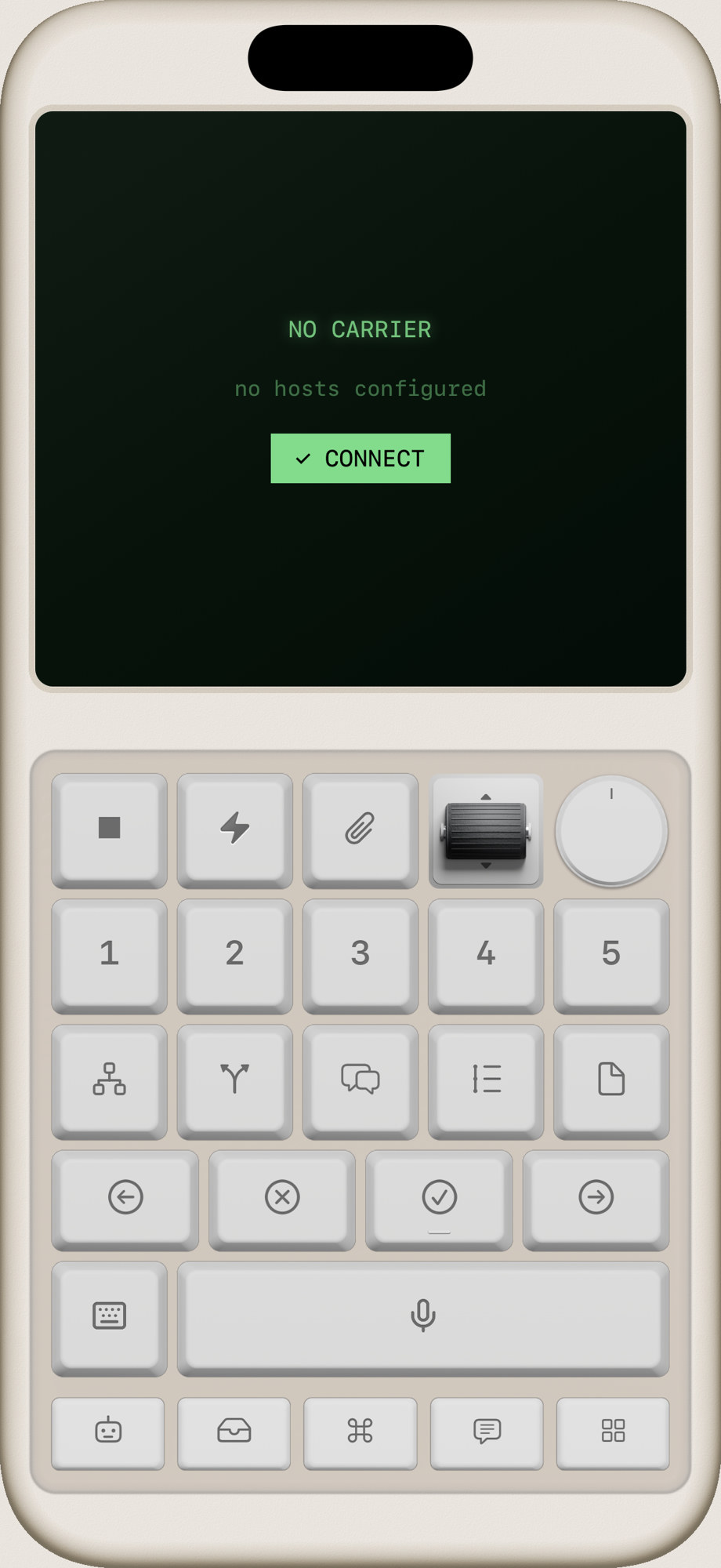
- Screen No host is paired. It reads NO HOST, then no hosts configured. CONNECT opens Add host.
-
Top row
- STOPWith a session open, ends the current turn.
- FASTReads On or Off. Press it to switch.
- ATTACHWith a session open, offers Photos and Files.
- ROLLERThe wheel does not send a command.
- MODELPress the knob to open the model list. Press it again to use the selected model. Turn it to move the reasoning level, from 0 to 3. Inside the list, turning moves the selection. CANCEL closes the list and keeps the current model.
- Numbers 1 to 5 select that item on the page.
-
Type
- KEYBOARDOpens a line. Return sends it to the current session.
- TALKHold to talk starts dictation when the phone allows it. Otherwise the key reads Hold to talk, unavailable.
- Modes Left to right: AGENTS, NEEDS, COMMAND, SESSIONS, MACRO. The screen follows the key you press.
| Mode | Console | Picture keys |
|---|---|---|
| AGENTS |
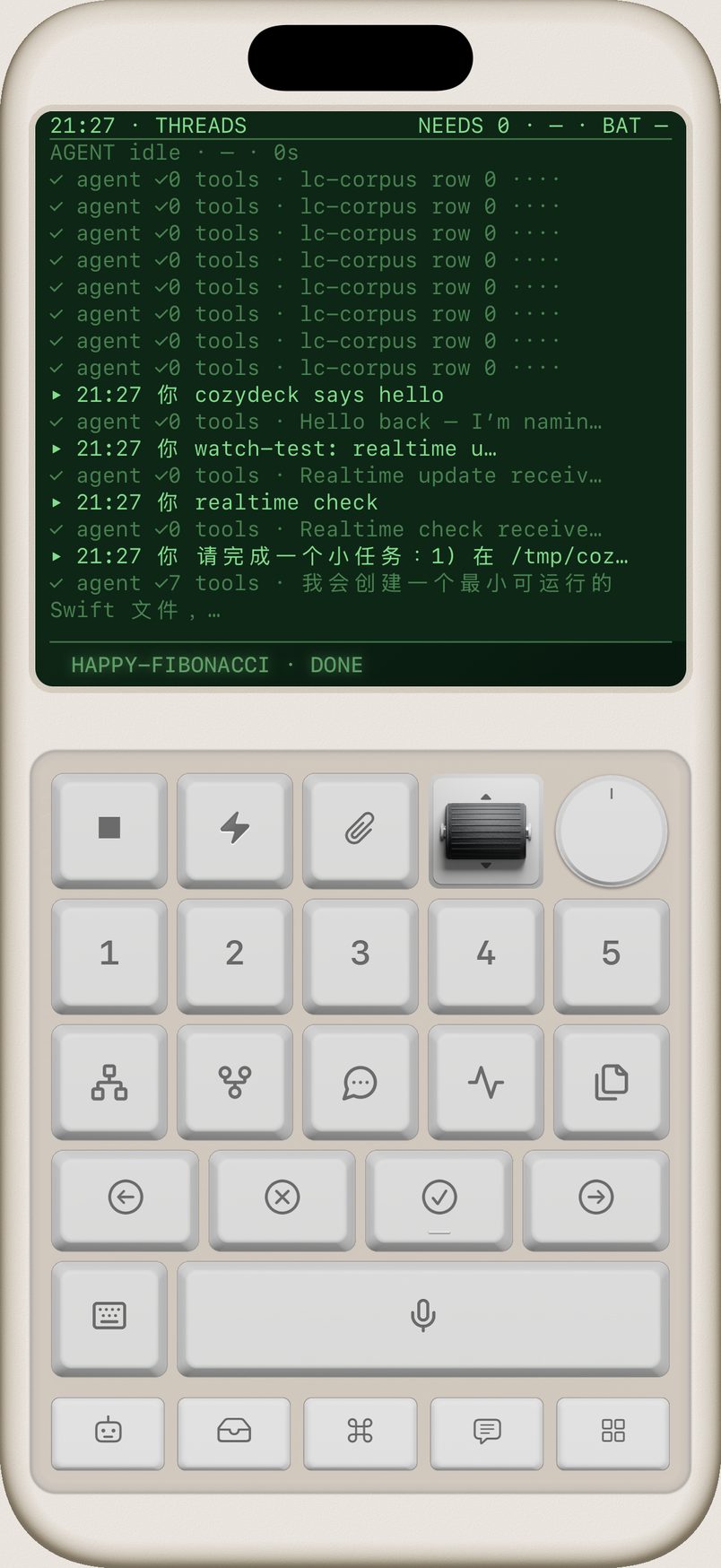
The current session. PREV and NEXT turn the outline. CONFIRM opens the full turn. CANCEL returns to the outline. The number keys do nothing here. |
In AGENTS these marks do nothing. |
| NEEDS |
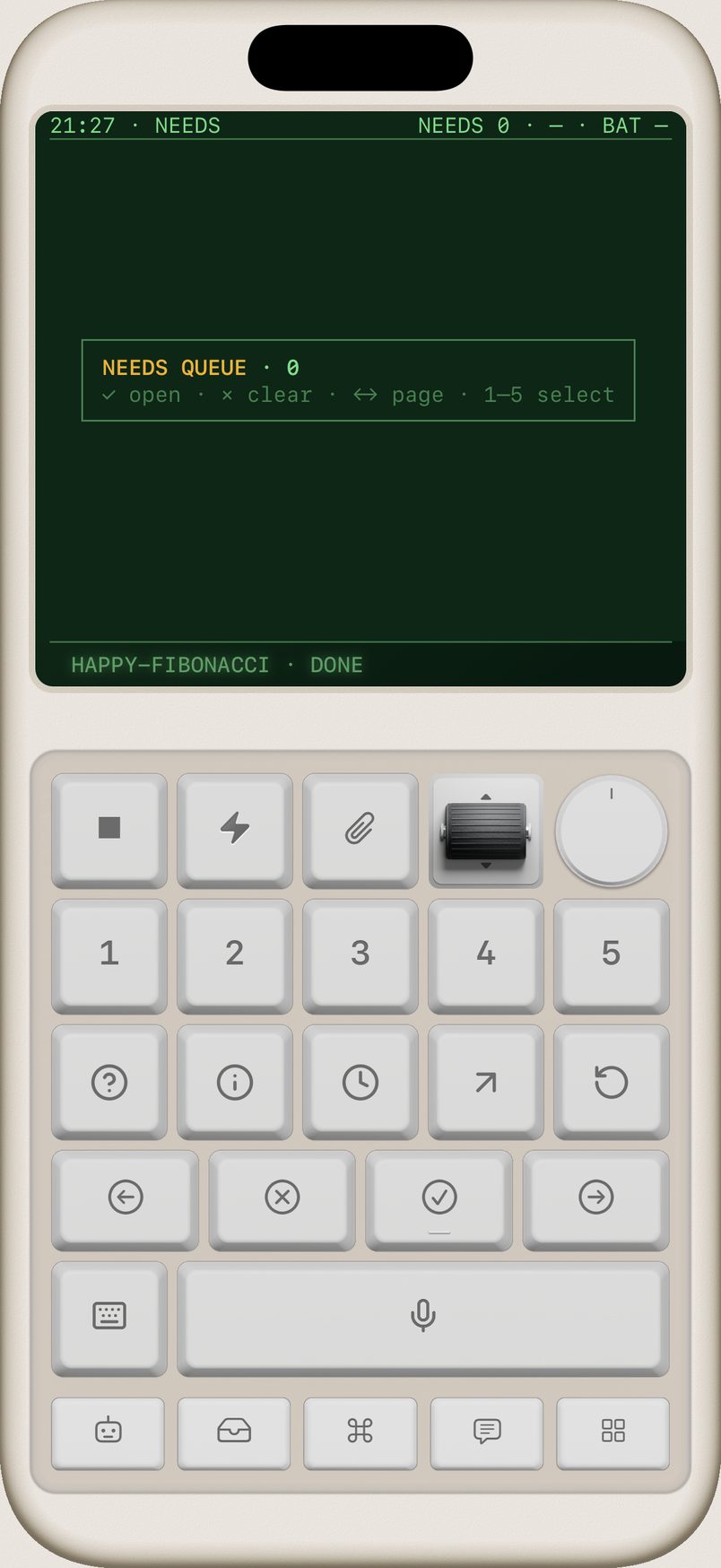
The console's waiting queue. A number selects an item. CONFIRM opens it. PREV and NEXT turn the page when there is more than one. CANCEL closes the open item. |
|
| COMMAND |
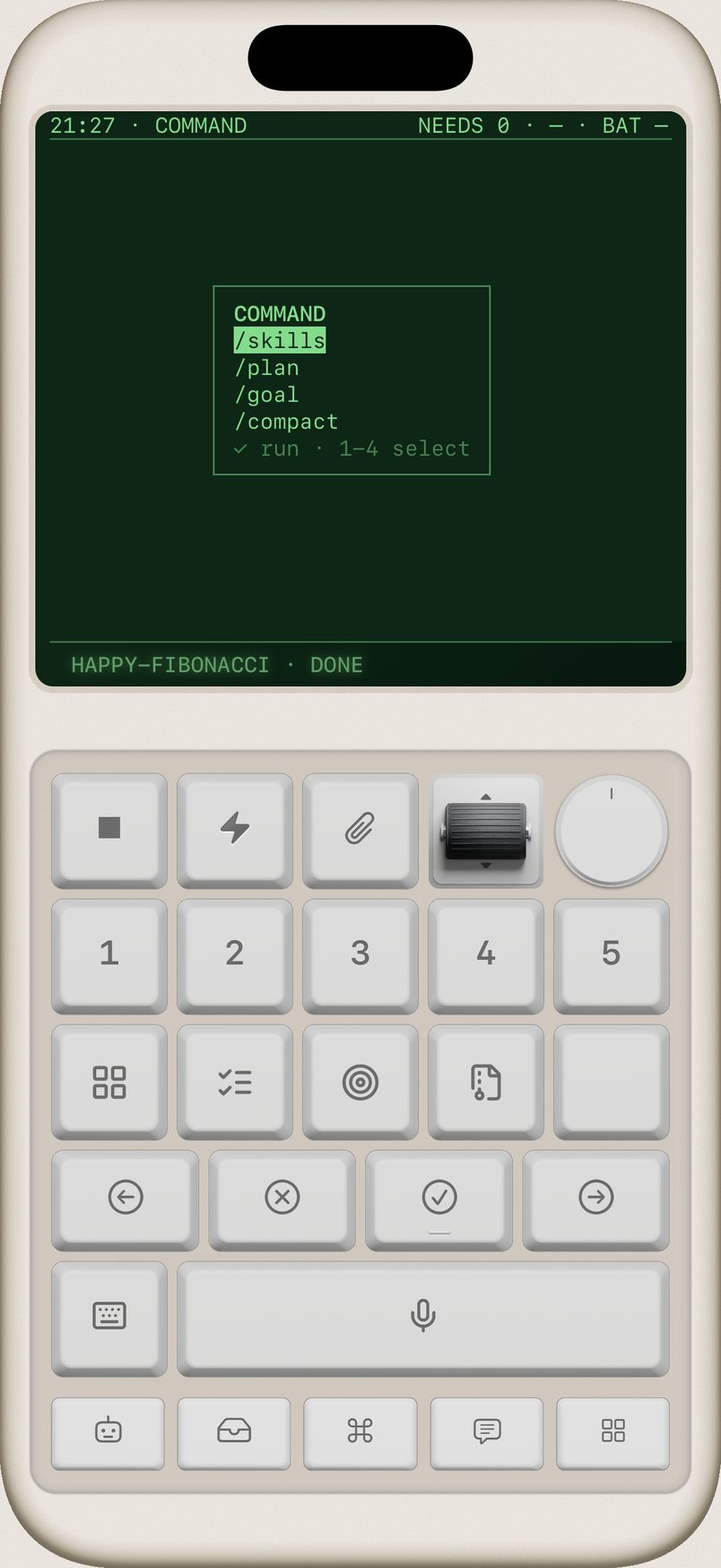
Commands. Numbers 1 to 4 select a command. CONFIRM runs it. Compact waits for a second CONFIRM. CANCEL drops that preview. Number 5 does nothing. |
|
| SESSIONS |
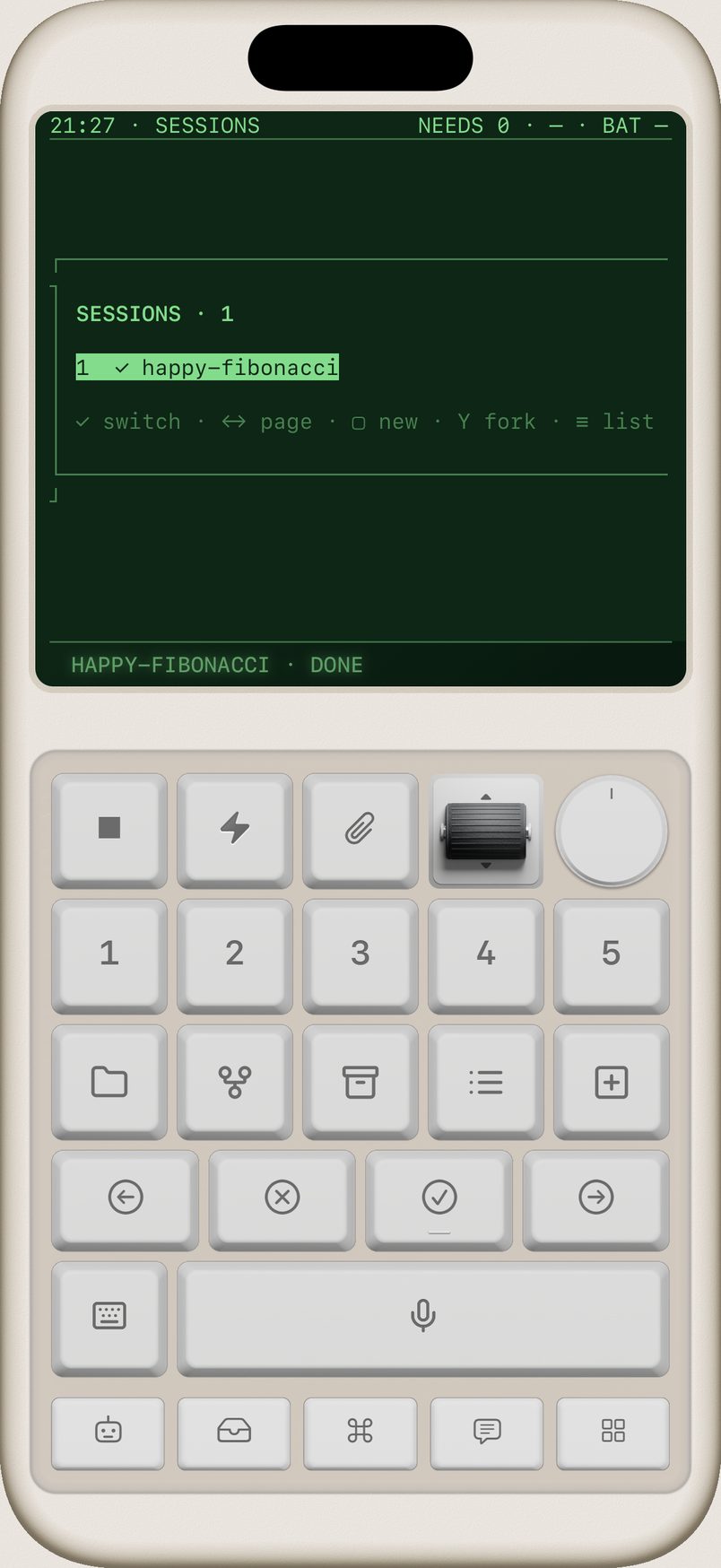
The session list. A number selects a row. CONFIRM switches to it and stays in the console. AGENTS then shows that session. |
|
| MACRO |
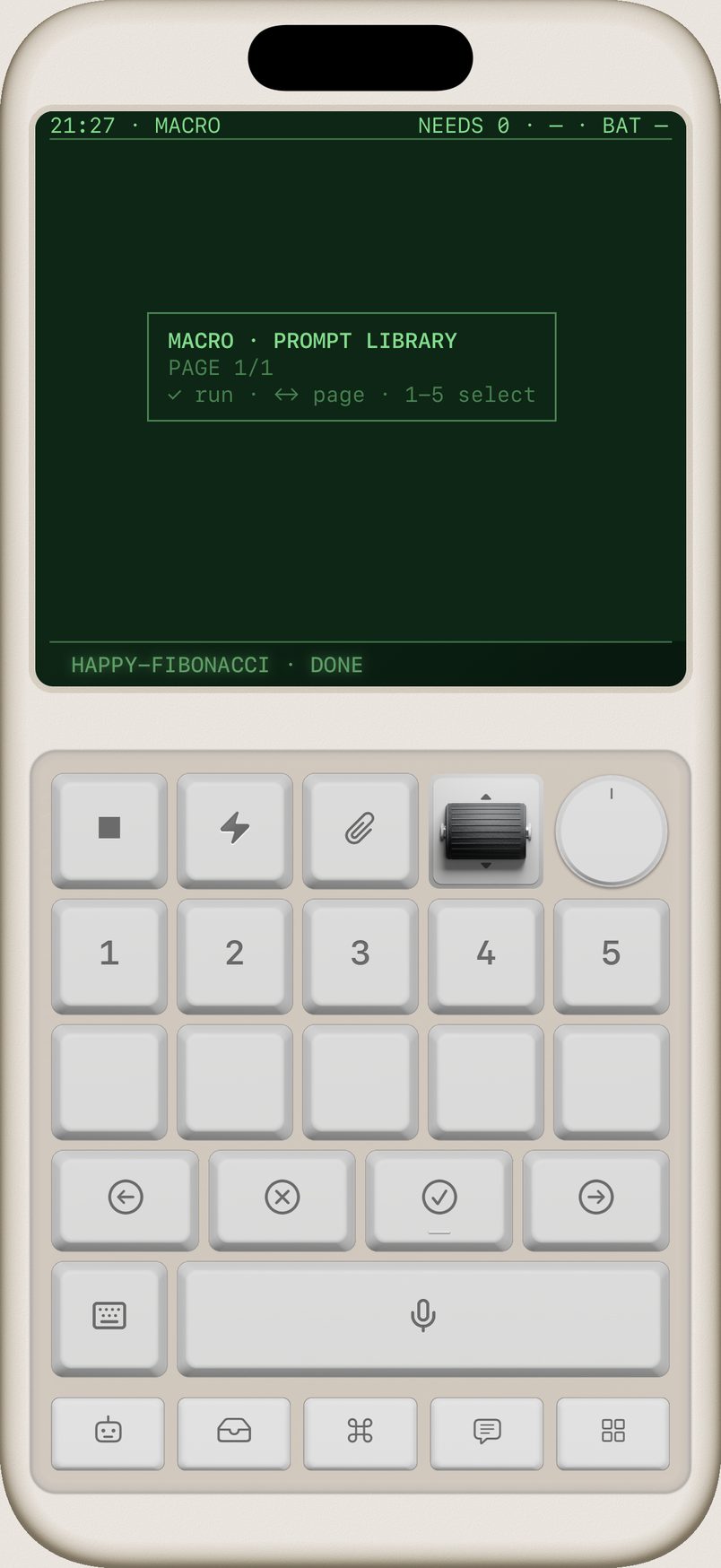
The prompt library. The same Prompts you keep in Library. A number selects one. CONFIRM runs it. |
Each picture key runs the prompt in that slot. |